Video Recording with DSLR Camera
Turn on the camera
- Turn on camera with power button on top-left of the camera.

Shooting Mode
- Find the mode dial right above the on-off switch
- Set it to M (Manual)

Set Camera to Movie Mode
- At the top-right of you display screen, you will see a switch between a white camera back and a red movie camera.
- Set it to the red movie camera for recording video.

Turn on Info
- in order to see onscreen information, you might need to press the “info” button
- Pressing this button will bring up more information about your camera settings, and bring up histograms

Set White Balance
- Match the camera’s white point to colour of light you are using.
- Press the Q button
- Select the second button on the top-right of display
- Choose the right kind of light from the list on the bottom.
- if outside: use the Sunlight icon
- if indoors at night: use the light bulb icon

*Note: many new light bulbs have various colours of light. If your video image looks too orange, blue, pink, green and so on, you might have to change your white balance. Some LED lights will cause dark bands to appear across your video image so be careful when using home lights.
Set Exposure
Exposure = Shutter Speed + Aperture
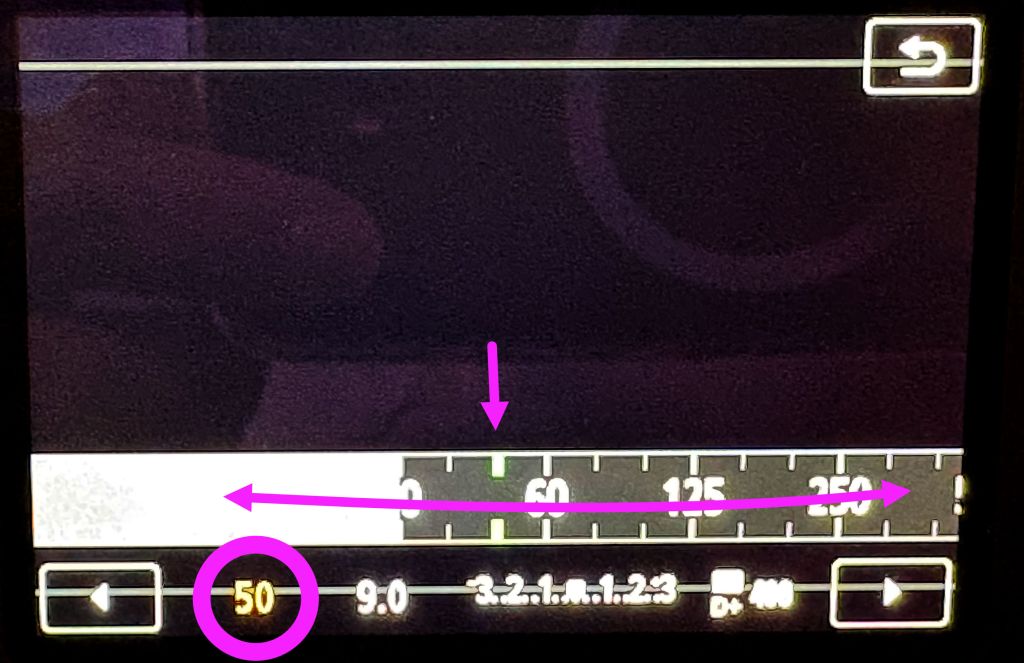
- Shutter Speed:
- Use the touch display or the dial on top of the camera to set shutter speed
- each shutter speed is represented as a fraction of
1/x seconds, e.g. 1/125 - so the larger the “x”, the faster the shutter speed
- the camera does not show the fraction, just the bottom number, so the larger the shutter speed number the faster the shutter speed
- 50 is a good shutter speed for most video situations
- remember: the slower the shutter the more motion blur
- raise the shutter speed only if you need cleaner motion in your video

- Aperture:
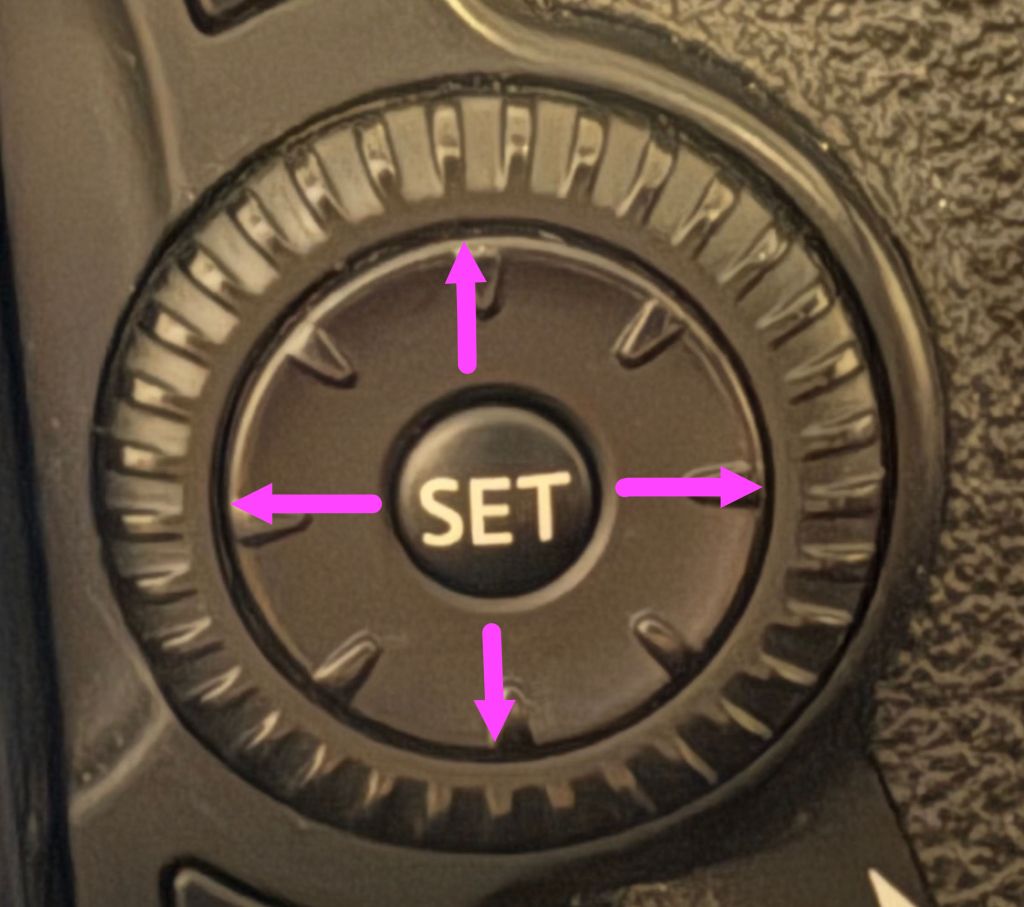
- Use the touch display or the wheel on the back of the camper to set aperture
- aperture is the size of the iris in the lens – the larger the iris lets in more light
- aperture is measured in f-stops. The higher the f-stop, the smaller the iris, and the less light enters the lens
- use histograms on your display to judge exposure (don’t trust the screen)
- remember: the wider the aperture (i.e. lower the fstop):
- the more vignetting, and
- the shallower the depth of field.


Set focus
- On the lens, set the switch to MF
- press the “magnifying glass +” icon at top right of camera back
- you will see a box on the display: drag it to where you want to check focus
- press the “magnifying glass + icon” again, it will zoom you to 5x
- rotate focus wheel on lens until the object looks in focus
- press the magnifying glass + icon again, it will zoom you to 10x
- correct focus by turning lens focus ring
- when focus is set, press the “magnifying glass +” icon again to return to normal zoom (note: the “magnifying glass -” icon will not zoom you out).
- reset focus every time distance between camera and subject changes
- check focus before you press record! Sometimes the ring gets knocked by accident. It is impossible to refocus a shot after it’s been recorded!



To record
- press the Start/Stop button

Leave a Reply