When exporting final edited project for the website, we want to make the video file size as small as possible without losing visual quality. It exports into a video format called “MP4” which is a standard video format for many devices, including web browsers. It uses a compression method called h.264, which is also a standard for web-based video.
The following is the settings for exporting for the class website:
1. Go to Deliver page:
2. Make sure that “Render Entire Timeline” is set, not “In / Out”
3. In the left column choose the following settings:
File Name: (Name of your video)
Location: (click Browse and choose a folder. I usually send it to the Desktop so I don’t have to go looking for it.)
Format: MP4
Codec: H.264
Resolution: Timeline Resolution
Framerate: Timeline Framerate
Quality: Restrict to 6000
3. In the Audio section, ensure Codec: AAC
4. On the bottom of this column you will see a button with the text “Add to Render Queue.” Click it.
5. The render queue is located on the right of the screen in a column. It lists all the timelines you’d like to export. Select the timeline you want to export (you probably only have 1 there) and then click the button, “Render All“. (It might read “Render 1” depending on how many timelines are in your queue. It will render out your video to the location you specified.
Once you click Render All, the video will export your video. Check it and make sure it’s all correct once you’ve exported. Sometimes students have a little bit of footage way down their timeline, and this will make the exported file longer than wanted. So make sure there’s no bits of footage after the end your video!
What about a high quality version?
The above instructions will make a very “compressed” version of your video – low quality and low file size, much like a JPG image. You may want a full quality version for your archives. A full quality version can be used in editing software or uploaded to Vimeo and YouTube, but it is not directly usable for websites. The following instructions will make a full resolution Quicktime .mov file. This file will be very large.
Settings for high quality version:
Same instructions as above but with these changes:
Format: Quicktime Codec: Apple ProRes Type: Apple ProRes 422
Download the software only from the following link: https://www.blackmagicdesign.com/products/davinciresolve There are some sites out there using the name DaVinci that are not the valid software, so please don’t just Google it and click the first link
There is a link that reads, “Free Download” – click that. Select the link from the LEFT options for the free version. The right option is for the paid version
Choose the link for the operating system you have. (If you don’t know, ask me.)
It will ask you to register, that’s okay – enter your information to register and click download.
The installer will download. It will be about 5 GB.
Once downloaded, run the installer.
Download the free version of ResolveMake sure to download the version that matches your computer’s operating systemFill in details, click registerIt will start your downloadUnzip the download by double clickingOn a Mac it will create a DMG file. On Windows it will make an .exe. Open these.Run the installer
Turn on camera with power button on top-left of the camera.
Shooting Mode
Find the mode dial right above the on-off switch
Set it to M (Manual)
Set Camera to Movie Mode
At the top-right of you display screen, you will see a switch between a white camera back and a red movie camera.
Set it to the red movie camera for recording video.
Turn on Info
in order to see onscreen information, you might need to press the “info” button
Pressing this button will bring up more information about your camera settings, and bring up histograms
Set White Balance
Match the camera’s white point to colour of light you are using.
Press the Q button
Select the second button on the top-right of display
Choose the right kind of light from the list on the bottom.
if outside: use the Sunlight icon
if indoors at night: use the light bulb icon
*Note: many new light bulbs have various colours of light. If your video image looks too orange, blue, pink, green and so on, you might have to change your white balance. Some LED lights will cause dark bands to appear across your video image so be careful when using home lights.
Set Exposure
Exposure = Shutter Speed + Aperture
Shutter Speed:
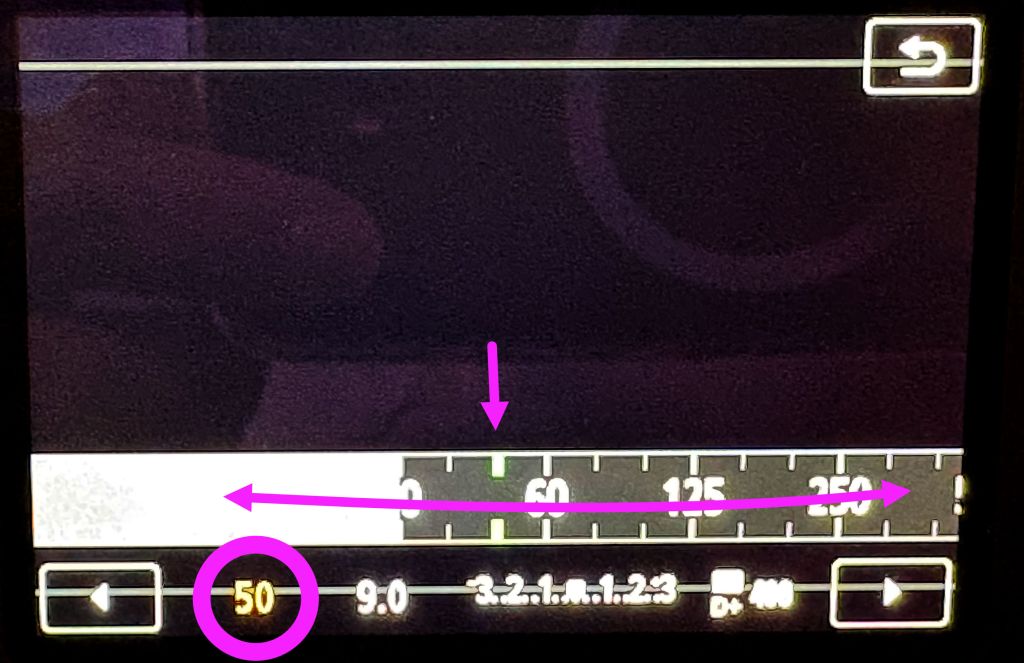
Use the touch display or the dial on top of the camera to set shutter speed
each shutter speed is represented as a fraction of 1/x seconds, e.g. 1/125
so the larger the “x”, the faster the shutter speed
the camera does not show the fraction, just the bottom number, so the larger the shutter speed number the faster the shutter speed
50 is a good shutter speed for most video situations
remember: the slower the shutter the more motion blur
raise the shutter speed only if you need cleaner motion in your video
Aperture:
Use the touch display or the wheel on the back of the camper to set aperture
aperture is the size of the iris in the lens – the larger the iris lets in more light
aperture is measured in f-stops. The higher the f-stop, the smaller the iris, and the less light enters the lens
use histograms on your display to judge exposure (don’t trust the screen)
remember: the wider the aperture (i.e. lower the fstop):
the more vignetting, and
the shallower the depth of field.
Set focus
On the lens, set the switch to MF
press the “magnifying glass +” icon at top right of camera back
you will see a box on the display: drag it to where you want to check focus
press the “magnifying glass + icon” again, it will zoom you to 5x
rotate focus wheel on lens until the object looks in focus
press the magnifying glass + icon again, it will zoom you to 10x
correct focus by turning lens focus ring
when focus is set, press the “magnifying glass +” icon again to return to normal zoom (note: the “magnifying glass -” icon will not zoom you out).
reset focus every time distance between camera and subject changes
check focus before you press record! Sometimes the ring gets knocked by accident. It is impossible to refocus a shot after it’s been recorded!
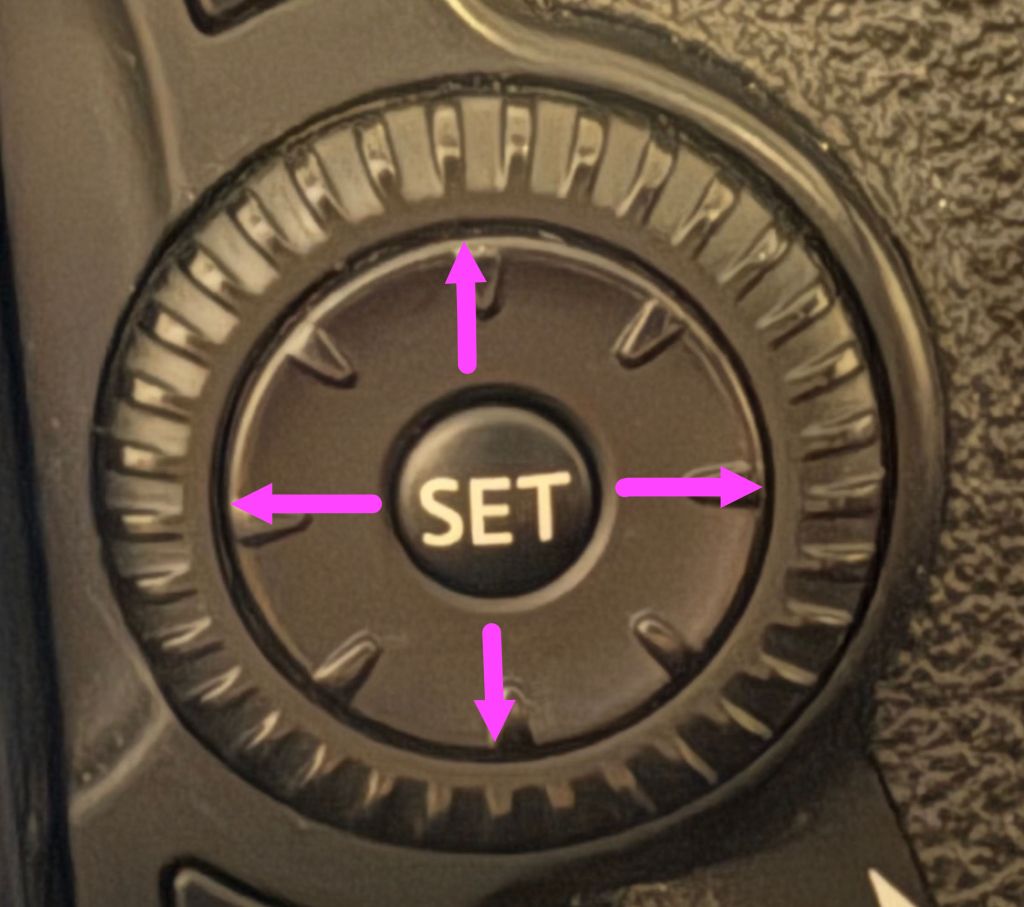
Set to M for Manual FocusPress Magnifying Glass + Focus Window appears. Now move it into the area of focus.Move focus window with control pad. You can finally tell your parents all those years of playing Gameboy were useful for your University Degree. Turn focus ring
Another year and Experimental has grown again! We have more equipment and more capabilities. There is much, more you can do in our area. So much more that it’s not possible to give you the details with just a quick in person orientation. This document is an intake package to give you a more thorough overview of the equipment, facilities and possibilities for your projects. I look forward to seeing what you do with them in your coursework!
This document is a work in progress and thank you for your patience if I’ve missed anything or if anything is unclear.
Any questions? Ask me, and I’ll be happy to help!
Have fun, have an awesome term, and make great art!
Nathan (the Experimental technician)
Table of Contents
Support for Student Personal Computers
Technician Support
The Lab
Recommended Software
Equipment
Miscellaneous
Support for Student Personal Computers
Computers nowadays are very capable and have made it possible for students to work on their own computers and laptops. Some students like working on their own devices and that’s great! We are trying to support this as much as possible.
Here are some of the ways we are trying to accommodate student computers:
Around 8 to 10 large docking screens will be available in the lab for your personal laptops: Simply plug your MacBook or Windows laptop to the USB-C cable, and work away on a larger screen. Some initial permissions set up might be required, but once you’re passed that it works very easily. Most laptops have a “clamshell” mode, where the laptop can be closed and all activity gets moved to the external monitor. Keyboards and mice are provided, and if you prefer, Windows keyboards and mice are also available. Connecting to the monitor also charges your laptop while you work!
We will be using open source and/or free software.Everything we do in class will be done with software that you can download and install onto your computer for free. The two main apps you will need are DaVinci Resolve and Affinity. (See list of recommended software below.)
The technician and lab monitors will help you with Screen calibration. We use software called Calibrite Profiler and a screen calibration devices to check your monitor and make sure the colours displayed are accurate and match the lab computers and projector. It’s something every digital artist should know how to do!
Technician Support
What do I do as a technician?
Provide and manage equipment
Technical instruction for equipment and software
Consultations on projects
Technical support when things go wrong
My Work Hours and Availability
My works hours are
Monday to Friday: 9:30am – 5:00pm
Lunch between 12:30 – 1:00
On Fridays I work online and can be reached by email or Teams
Class time
During class time I am available with priority to students in that class. Outside of class time, I am available to you during open lab times this term (Fall 2026) for any question you may have:
Mondays: 9:30 – 11:30 / 2:30 – 5:00
Tuesdays: 11:30 – 5:00
Wednesdays: 9:30 – 11:30 / 2:30 – 5:00
Thursdays: 11:30 – 5:00
Best ways to contact and communicate with me
I am available to answer your questions and help you out during work hours, when I’m not helping out during a scheduled class. Usually I’m in my office in Zavitz 317 or in the Experimental Lab in Zavitz 318. Drop by in person and I’ll be happy to answer any questions!
If you have a technical issue or important equipment request, see me sooner than later! Sometimes students wait until the last minute, and I don’t always have enough time to help them out.
If you can’t meet in person, feel free to send me an email anytime: nsaliwon@uoguelph.ca. After 5:00pm I might not be checking email, but if I do see your email and I have time I will try to respond.
My inbox is usually overwhelmed, so if I don’t respond in reasonable time, please email me again. I’m not ignoring you – I have to go through a lot of email every day.
Often I make important announcements on Courselink, so please check Courselink regularly.
The Lab
You are welcome to work in the lab during your class and during open lab time. We have a number of computers for you to work on, but you are also welcome to use your own personal computers too.
Schedule
Monday
Tuesday
Wednesday
Thursday
Friday
Saturday
Sunday
8:30am
x1 Class 8:30 – 11:20
x1 Class 8:30 – 11:20
Times TBA
Times TBA
Times TBA
9:30am
Open Lab time
Open Lab time
10:30am
11:30am
x2/3 Class 11:30 – 2:20
Open Lab time 11:30 – 9:30
x2/3 Class 11:30 – 2:20
Open Lab time 11:30 – 9:30
12:30pm
1:30pm
2:30pm
Open Lab time 2:30 – 9:30
Open Lab time 2:30 – 9:30
3:30pm
4:30pm
5:00pm
5:30pm
6:30pm
7:30pm
8:30pm
9:30pm
Lab closes
Lab closes
Lab closes
Lab closes
Lab closes
Lab closes
Lab closes
Note: This schedule will change and a final schedule will be posted and sent to you over Courselink.
After Hours Access
The lab will be open after hours during the week and weekends. To access the building you will need to ensure tap access is available. The exact hours will be posted on Courselink and on an information sheet outside the lab.
The lab is are supervised by Lab Monitors. Lab Monitors are fellow students who have been hired to take care of the lab and keep it open for after hours access. Please follow their instructions and show courtesy to them as they work. When the Lab Monitors close the lab for the night, please promptly vacate the lab.
If you encounter any trouble in the lab, please tell a monitor and make me aware right away with an email to my work account explaining the situation: nsaliwon@uoguelph.ca
Rules about food
Food can ruin equipment! So, please keep your chili burritos, coffees, Booster juices, and other messy meals at least 10ft away from the computers. I’ve had to clean food off the computers too many times. GROSS.
But, fear not! We have a food area! By the door to room 318 there is a microwave and mini fridge. Feel free to use them. Just make sure to clean up your mess afterward and please don’t forget to take your Tupperware with mystery casserole in the fridge with you.
Using the Lab space for production
We don’t have much space, so our lab is a teaching area, a computer lab, and a production space! We try to do what we can with our limits. You are welcome to shoot your videos in the lab.
Advance notice for shooting in the lab would be good idea to prevent double booking. If it looks like it will be busy shooting in the lab I will set up a Microsoft Bookings page for it.
The lab has 4 soft box lights you are welcome to use, plus an assortment of backdrops stored up in the loft. We have stands and other gear to help set up backdrops and lights. If you’d like to shoot on a greenscreen for chromakeying, we have you covered! If there’s anything you’d like to do, please let me know and I’ll do my best to set you up.
The Photo Studio
The photo studio in room 320 is run by Richelle Forsey, the Photo Technician (rforsey@uoguelph.ca). When the studio isn’t being used by Photo students, it can be used by Experimental Students with Richelle’s permission. If you would like to use this room for your video or photo shoots, please see her in her office (Zavitz 406) and politely introduce yourself as an “Experimental Student wanting to use the Photo Studio”. She is nice and will help you out. Make sure not to touch the photo area gear and equipment in that room! Use only Experimental equipment in this studio.
Recommended Software
If you’re curious about using your own computer for media production, feel free to try out these software apps! Free versions of this software are available.
In your classes we will mostly use DaVinci Resolve and Affinity.
Motiv Audio The software that connects to the microphones we use in class. It can record without a mic attached, using the mic on your phone or tablet.
We have a lot of equipment for you to take out and use! You are welcome to use all our equipment, since the more you use it the more you will learn – and that’s sort of the point of what we’re all doing here…
Level 1 students will have access to intro equipment and with training can access other equipment. Level 2/3 students have access to all equipment.
Try to book equipment ahead of time, and pick it up between 4:00 – 4:30 Mondays – Thursday. Return the next day between 10:00 – 10:30. Items taken on Thursdays are to be returned on Mondays.
Equipment List
Here is a list of some of the equipment we have for you to use. Ask about any of them!
Equipment
Purpose
Need extra training?
Canon 70d DSLR camera
Photography and entry-level video
Covered In class
Blackmagic Pocket Cinema Camera
High level video
Yes
Tripods
Keeping your photos and videos still
Covered In class
Large softbox lights in lab
Lighting videos and photos
Covered In class
Portable LED light kit
Lighting outside lab
Yes
Bounce kits
Reflects / Filters light
Covered In class
Ronin Gyro stabilizer
Smooths out moving camera motion
Yes!
Projectors
Project videos on walls etc.
Yes
iPads + Apple Pencil
Drawing, audio, animation
Yes
iPods
Audio recording
Covered In class
MV88 Microphone
Audio recording
Covered In class
Boom pole for lights
Lighting from difficult angles
Yes
Wireless Mics
Recording audio from a distance
Yes
Media Players
Playback of video on TVs and projectors
A little
Mac Minis
Video and interactive installations
Yes
miniDV Cameras
Old school tape-based video cameras
Yes
HDTVs and old SDTVs
Video playback. We have lots of them.
Not really
Laser Levels
Installing works in straight lines
A little
Calibration cards
Colour accuracy in photo and video
Yes
Flash
For lighting in photography
Yes
Go Pro
Portable body recorder
Yes
Crafting equipment
We have various tools for “real” media production, such as working with paper.
Just a quick reminder: These items STAY IN THE LAB!
Button Maker
It uses 2.25” buttons and I have templates for laying out your designs for printing. This requires a tutorial before you use it, to ensure you will be safe using it. 100% fun.
Other tools and thingies
Rulers: we have plenty of rulers and straight edges for guiding line drawings and cutting.
Rotary cutters: a safe way to cut paper and cardstock, using a “pizza cutter” like form. It also makes it easy to cut curves.
Rotary Perforator: a tool to make perforated lines in paper and card stock.
Cutting Mats: always cut paper and cardstock on a cutting mat. Never directly on a table!
Scoring Board: a small scoring board to make creases and folding lines in your papers and cardstock
Bone Knife: not really a bone, but a tool for making scores in paper. Use with ruler or the scoring board.
Paper: I have various stocks of paper and cardstock that you’re welcome to use and try out.
Printer
The printer is available for use for course-related art printouts. It is not for printing essays or documents as the ink is archival quality and extremely expensive. Quick training is required before using the printer. This printer can print up to 13”x19”.
Before you use the printer make sure to clear it with the technician!
For larger sizes and large runs of printouts, please see Heather Rattray (hrattray@uoguelph.ca) in Zavitz 402.
Miscellaneous
Here are a few parts of our facilities that I don’t usually get time to show students but are pretty cool and worth using.
Animation Studio / Recording Booth
This space is really awesome! Make any kind of stop-motion animation you want! We have a camera installed and stop-motion capture software called Dragonframe. We have two mounted lights for bright exposures. We also have light tables if you’d like to work with backlit/transparent material rather than reflective. It is available while I am at work, and if you’d like to work after hours, you need to pick up a key from me.
It’s quiet, so you can record decent audio. The professional microphones are used in here, so if you want to record a really awesome voice recording, this is the place to do it.
It’s also great for documenting small to medium-sized works!
Scanners
We have a few scanners in the lab. If you plan on scanning wet or dirty materials we have transparent mylar sheets to place on the scanner bed so it does not get dirt or ruined. Wanting to scan with a black background? We have pieces of very low reflectivity black velvet that can be draped upon the scanner. The scanners can scan items up to 12” x 17”.
Microphones
We have a whole set of microphones for different purposes. I never have time to show them all to students, but come by my office to check the others out!
Lenses
Same thing. I have a library of different lenses for different purposes. If you have a look you’re going for or a technical goal, I can set you up with the right lens.
New analogue station
We’re trying to bridge the old and the new with an analogue digitation station. If you have old VHS, Hi8, or miniDV tapes, with footage you want to use, bring them in and I’ll set you up. Audiocassettes and records can be digitized too! The university library has a lot of old analogue tapes in its archive which you can bring into your projects. You can also rip DVDs – just ask me how.
Logic Pro
We used to teach Logic Pro – amazing audio software for audio editing and music making – but sadly we are phasing it out to give priority to software that students can install on their own computers for free. But, I can teach you plenty about it, and it’s still on the lab computers to be used. And it’s fun fun fun...
Printing on the Office Printer
If you are making zines or cheap posters, give me a PDF and I can print it full colour on the laser printer in the office! Sizes can go up to 11×17” – great for full page zines.
Lockers
Outside the lab we have lockers for you to use. Bring your own lock and use the lockers to store your belongings. Ahem, to add to that: non-food belongings please.